Author: DylWithlt
What is scripting? In essence all scripting is, is an interface between you and the computer in order execute instructions that change the game in a specific way by changing specific data values. Everything in a computer is represented with data from the colors on your screen to the positions you find them in.
Data is the language of computers so it’s important for us as scripters and programmers to understand how to communicate data in our code as specific as possible. Computers are dumb machines when it comes down to it and they only do what you tell it to so you need to tell it exactly what you want it to do in excruciating detail. Before we dive into this topic lets explore some ways we see data in the game already.
Properties
The first big example of data in the game are properties. When using Roblox studio under the explorer you’ll see lots of listed items called Instances. Each of these Instances can have other instances “inside” of them in the drop down menu. When we click on (select) one of the listed instances the Properties view will show a list of each property and its associated values.
These properties are each points of data that describe the behavior, appearance, position, anything you can think of that would dictate the way this object interacts with the world, our scripts, and our view of it will be here.
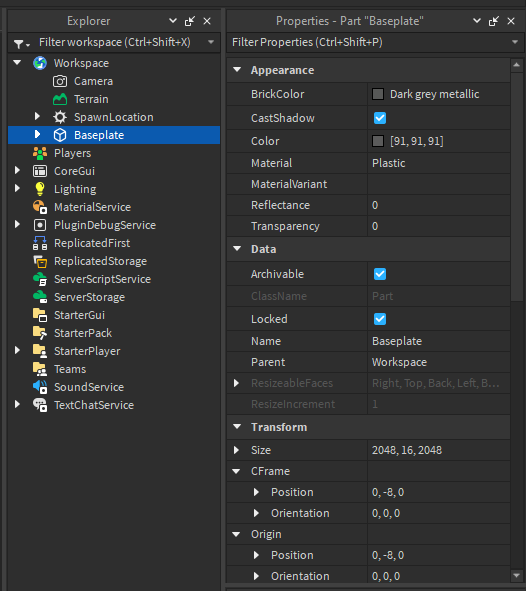
Now I want you to make note of a few things about this menu. Notice how each property name has something to the right of it, but that the thing to the right of it varies a lot from property to property. Think like a coder, if we wanted to change these things with code we’d need to tell the computer about them in very specific detail, but they’re all so different so how can we tell the computer what to make the new value in a way that the computer both accepts and understands.
This is the core idea behind data types, write data in a specific way so that the computer who runs our code knows exactly what we’re trying to do. It also lets each property know exactly what kind of data that it can be set to, because if we set the “Locked” property (which is a checkbox) to a number, that wouldn’t make sense to the computer would it? By specifying the specific type each property can be the computer can know when to accept values and reject them when we as coders want to change them, it also informs us as coders how to specify that data so the game accepts it.
How Can I Figure It out?
Each property has a data type associated with it, so how do I figure out what data type I would need in order to change a property? This is the part where you learn self sufficiency. I strongly recommend you follow along with the next few steps.
The first step is to find out the class name of whatever it is you’re trying to edit. In our case the className is “Part”.
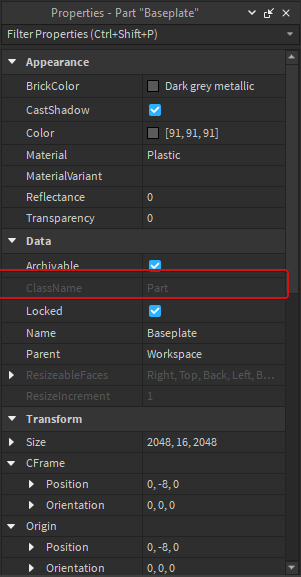
Let’s take that to google and search up the Roblox API to get more information about that class.
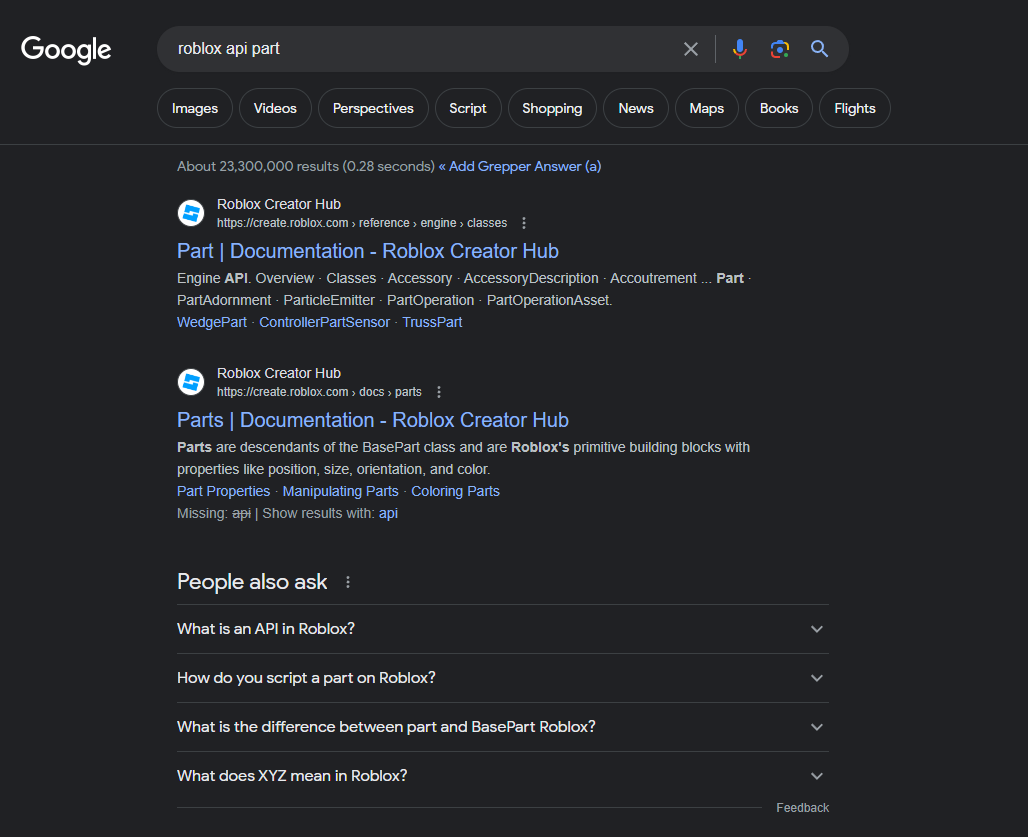
At the time of making this tutorial these are our results. Part was what we were interested in so lets click on that. https://create.roblox.com/docs/reference/engine/classes/Part
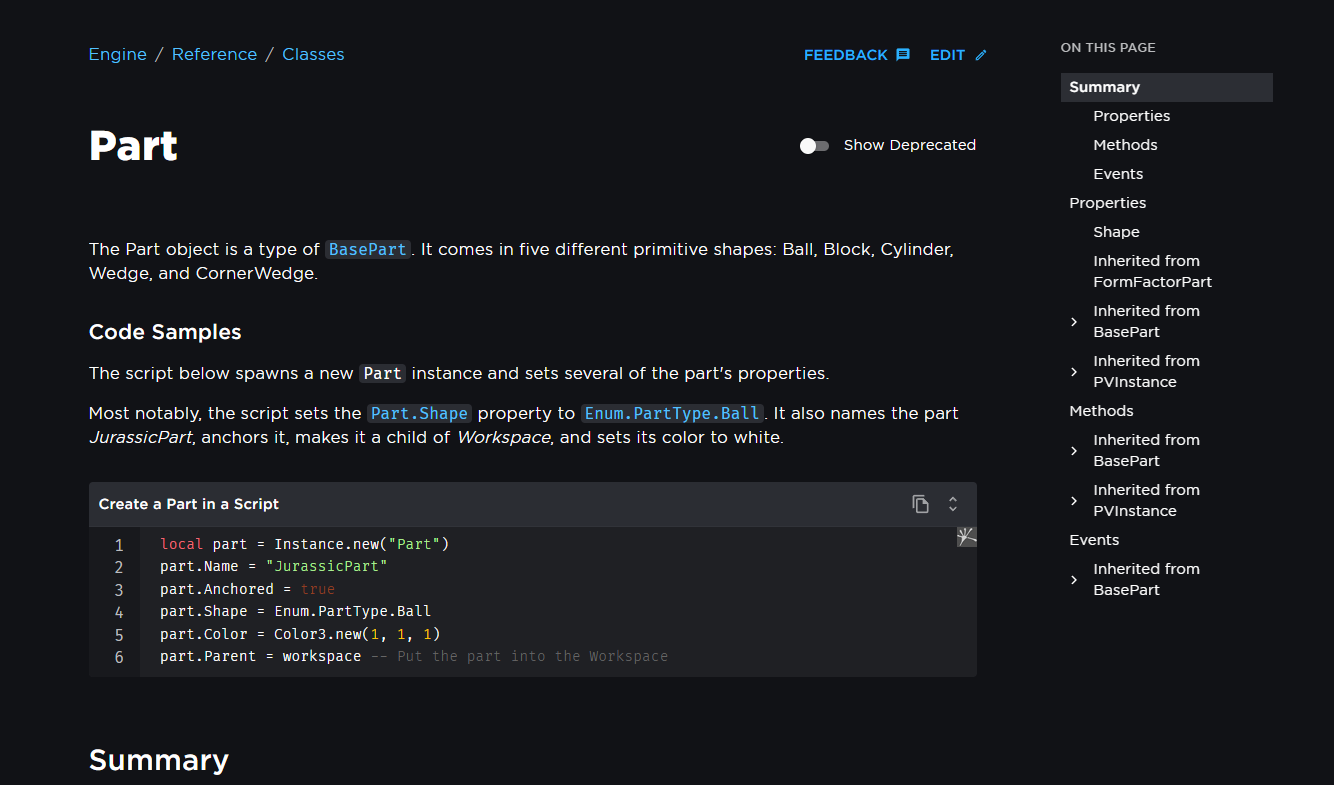
On the right here we see a list of properties that “Part” has really the only unique one we see is “Shape” but under that it says “Inherited from …” what does that mean?
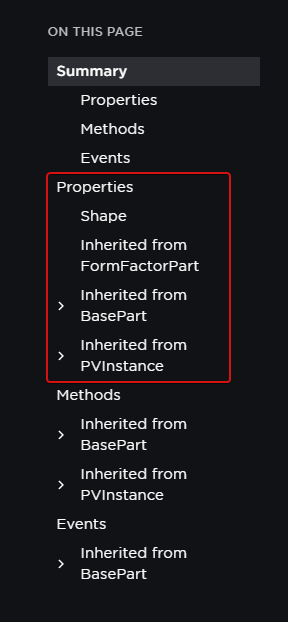
Inherited from means that a higher “Class” which you can think of like a more broad category like how an elephant is also apart of the category of “animals” which is apart of the category of “living things”. Part is a more specific category or “class” while “FormFactorPart” or “BasePart” or “PVInstance” are more broad categories. Which means that properties of those classes also apply to each more specific category as well. In other words just how an elephant belongs to the class of 4 legged animals (quadrupeds) that also means that because its an elephant it would naturally have have 4 legs.
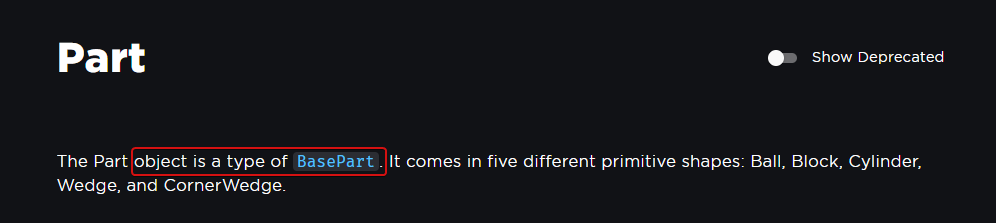
Lets click on that blue link and have a look at the BasePart page. https://create.roblox.com/docs/reference/engine/classes/BasePart This page should have a lot more properties you see when you click on an Instance such as BasePlate. Let’s look for something simple that we can see pretty easily, how about Transparency. Ctrl + F is a useful hotkey to search for words on a webpage.
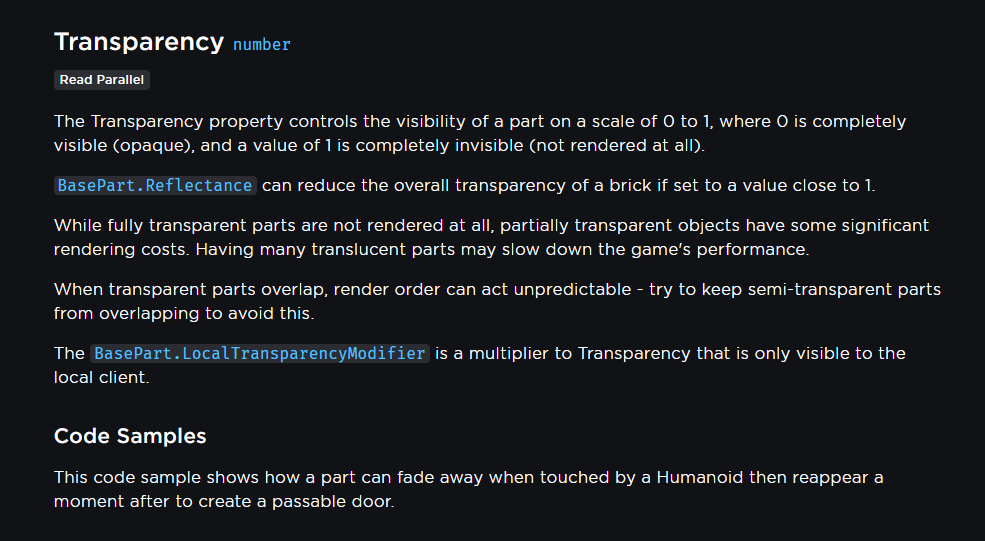
Here is the entry for Transparency on the page. The major thing I want you to pay attention to is the blue text next to the name of the property. It says “number” there. This is the data type associated with this property. Transparency will only accept data entered in this format. In this case number is a very simple example, you should hopefully know what numbers are. Lets look at a more interesting one. Let’s check out Locked, like we were talking about before.
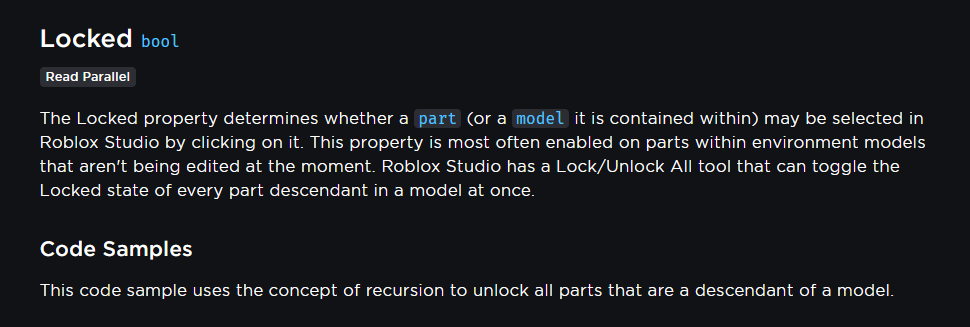
This one says its a bool data type, that’s short for “boolean”. If you remember on the properties panel this one was a checkbox, which means the data entered is pretty much how a checkbox works. Meaning a bool value is a value that is either checked or unchecked or in technical terms true or false. You can click on the blue data type to learn more about it. Let’s move on to a more complicated one. Let’s check out Color.
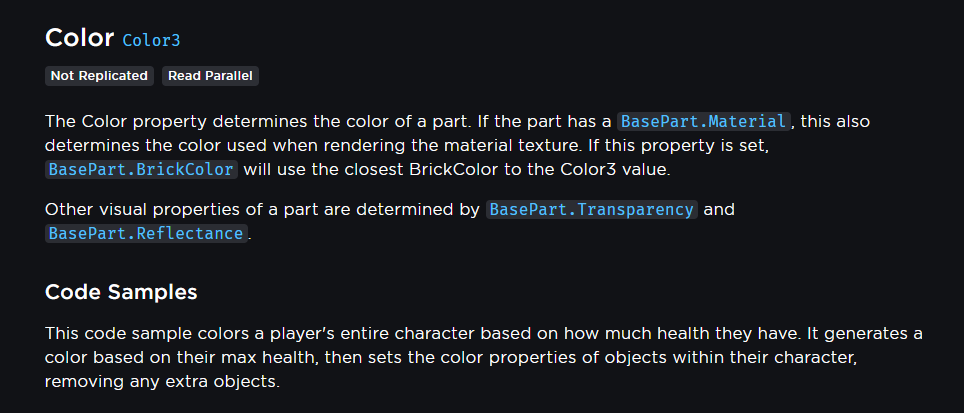
The type for Color is a Color3, interesting. That’s a data type? Yes it is. It’s a special type specific to roblox we call a Roblox Type. These are written a little differently. I won’t dive into how to write them yet in this section but we’ll cover that very soon. All I want you to focus on is exploring the API and seeing the different options and relating that to how you see them in the Properties panel. Importantly remembering how to find out something you don’t know is going to help a lot when encountering new things when scripting.